
Manage Exit and Transfer of Employee
When an Employee (4E user) exits the organisation or is transferred to another department. The 4E objects owned by such employees must be transferred to their replacement.
Also, if the employee has exited the organisation, then they must be deactivated in 4E after all their objects are transferred.
Only admin users can do these activities
Step 1 - Transfer KPIs
Go to Settings → Organisation → Employees.
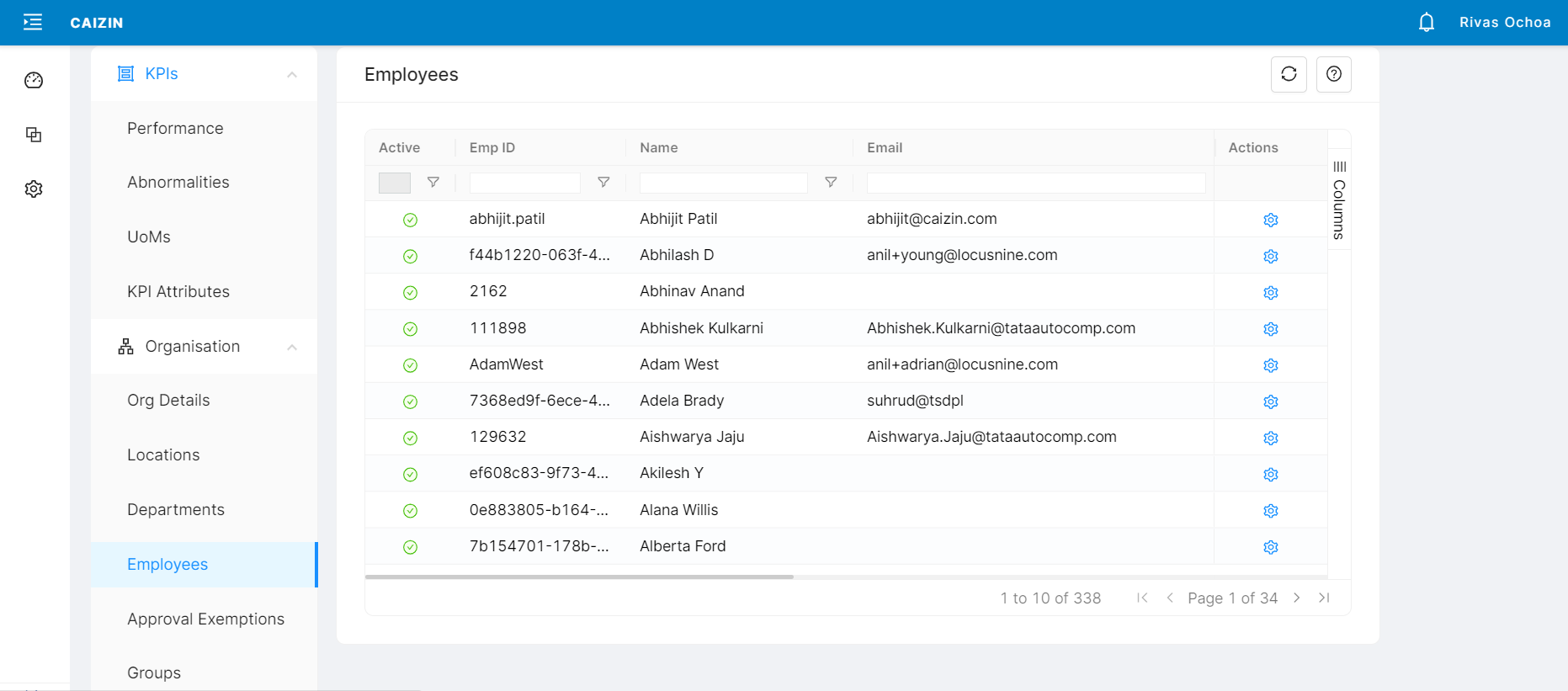
Here, search for the user whose KPIs need to be transferred.
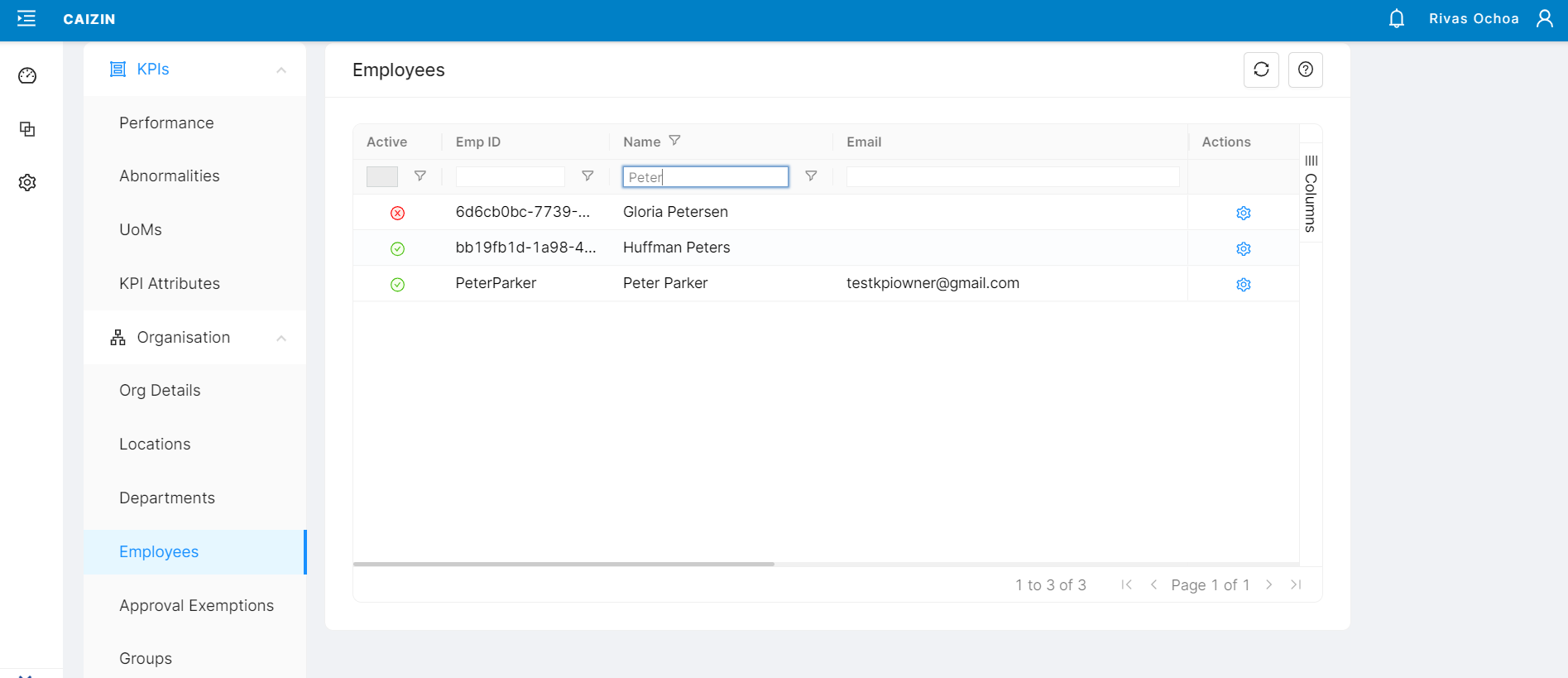
Right-click on the user and select Edit Details, this will open a drawer on the right, displaying user’s information
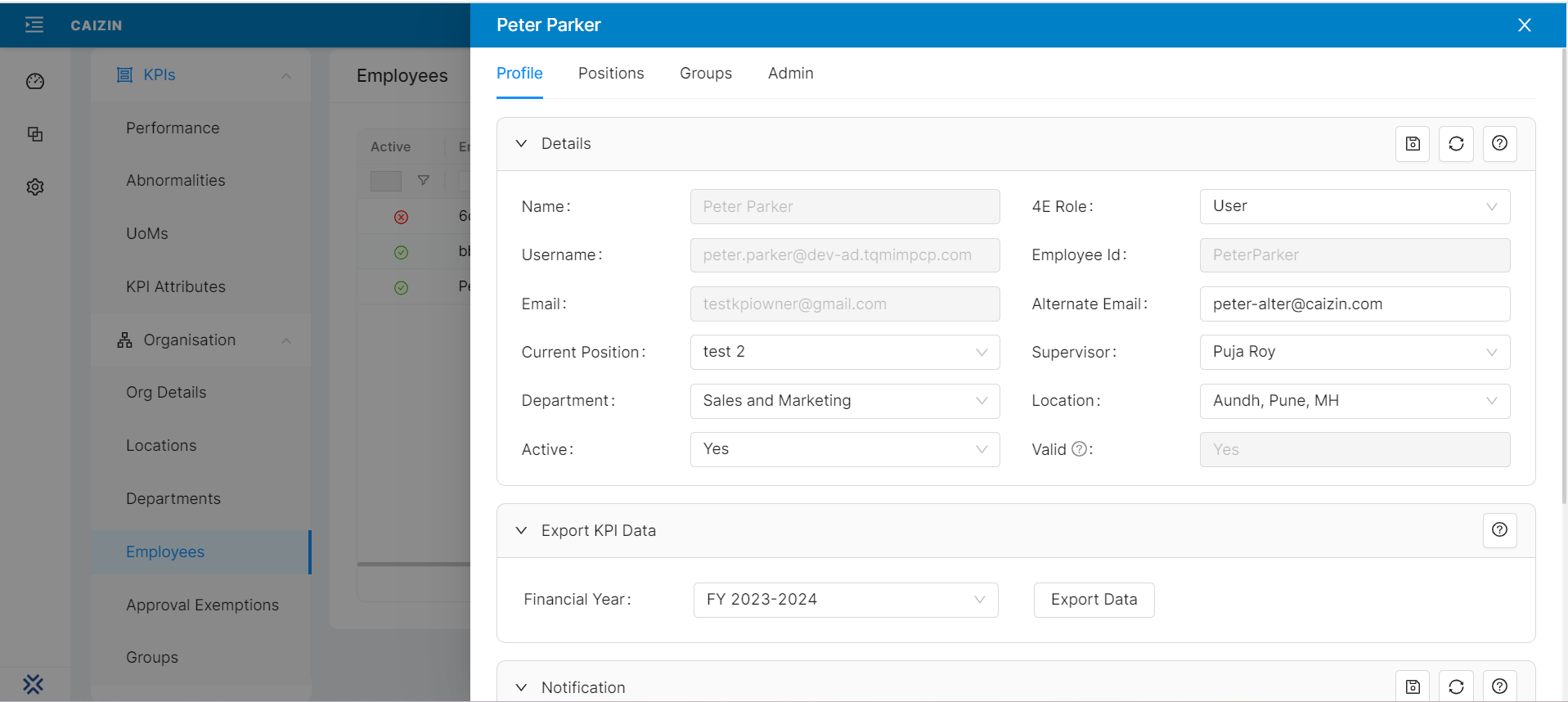
Select the Admin tab, here the ownership of 4E objects (KPIs, Forms etc) for the current FY is displayed.
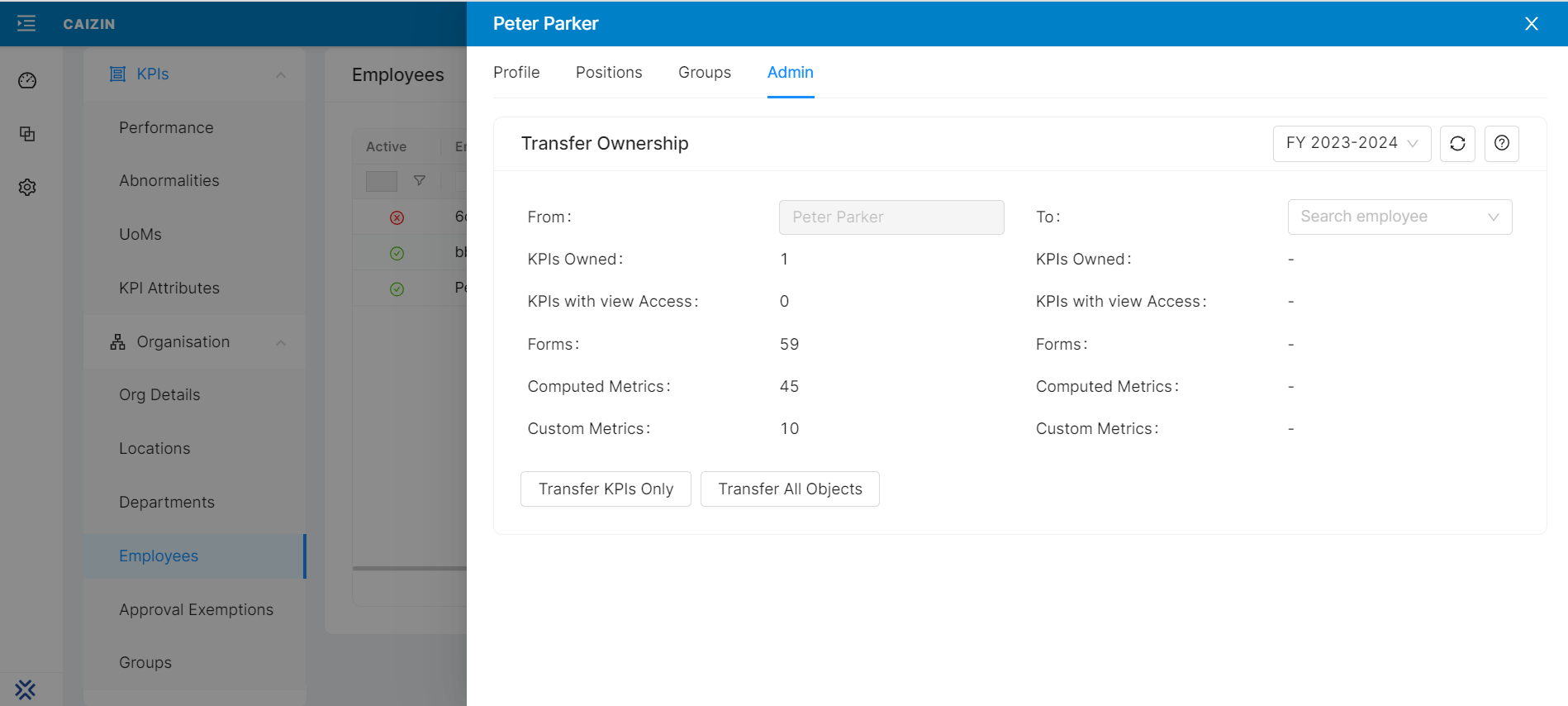
Under To: Search and select the user to whom the KPIs need to be transferred. This will also list the 4E objects currently owned by this user
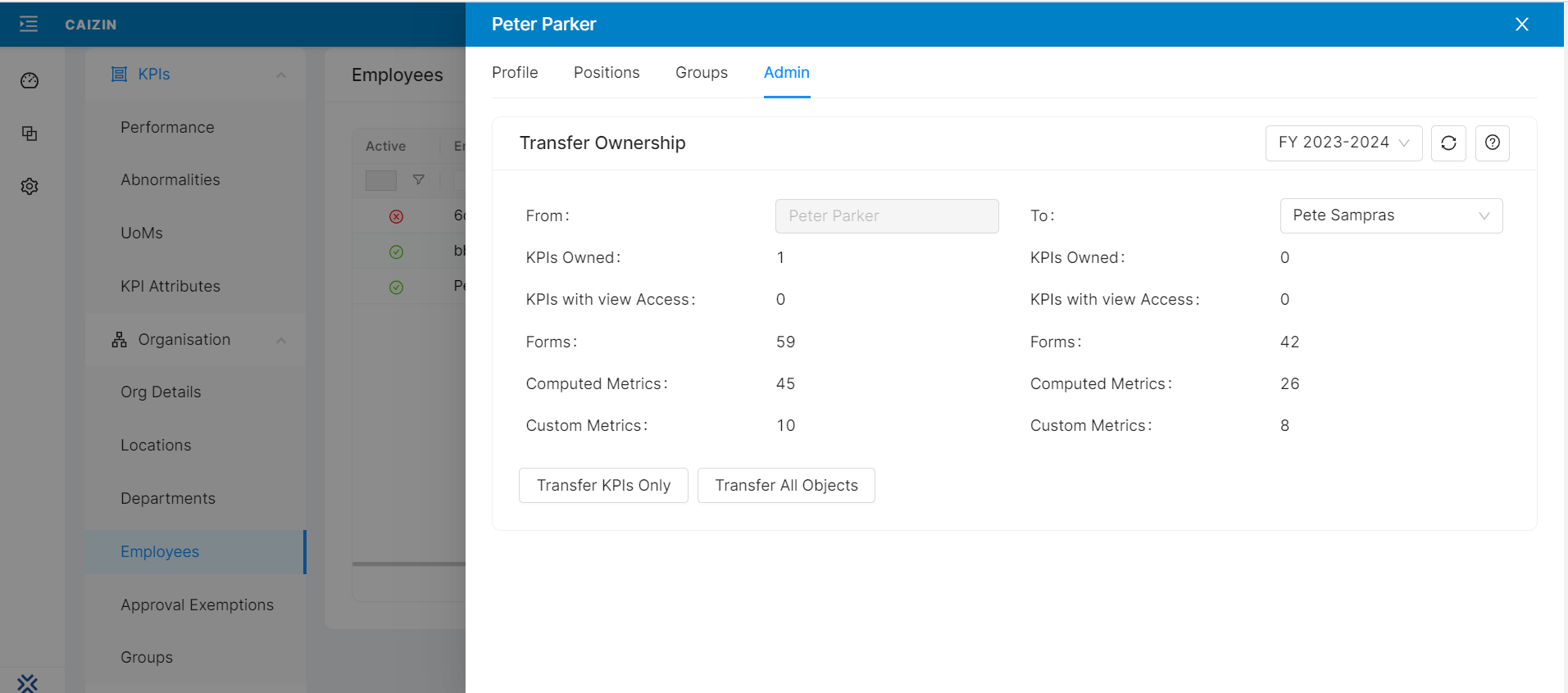
Now the admin 2 options
Transfer KPIs only - This will only transfer the KPIs ‘From user’ to ‘To user’
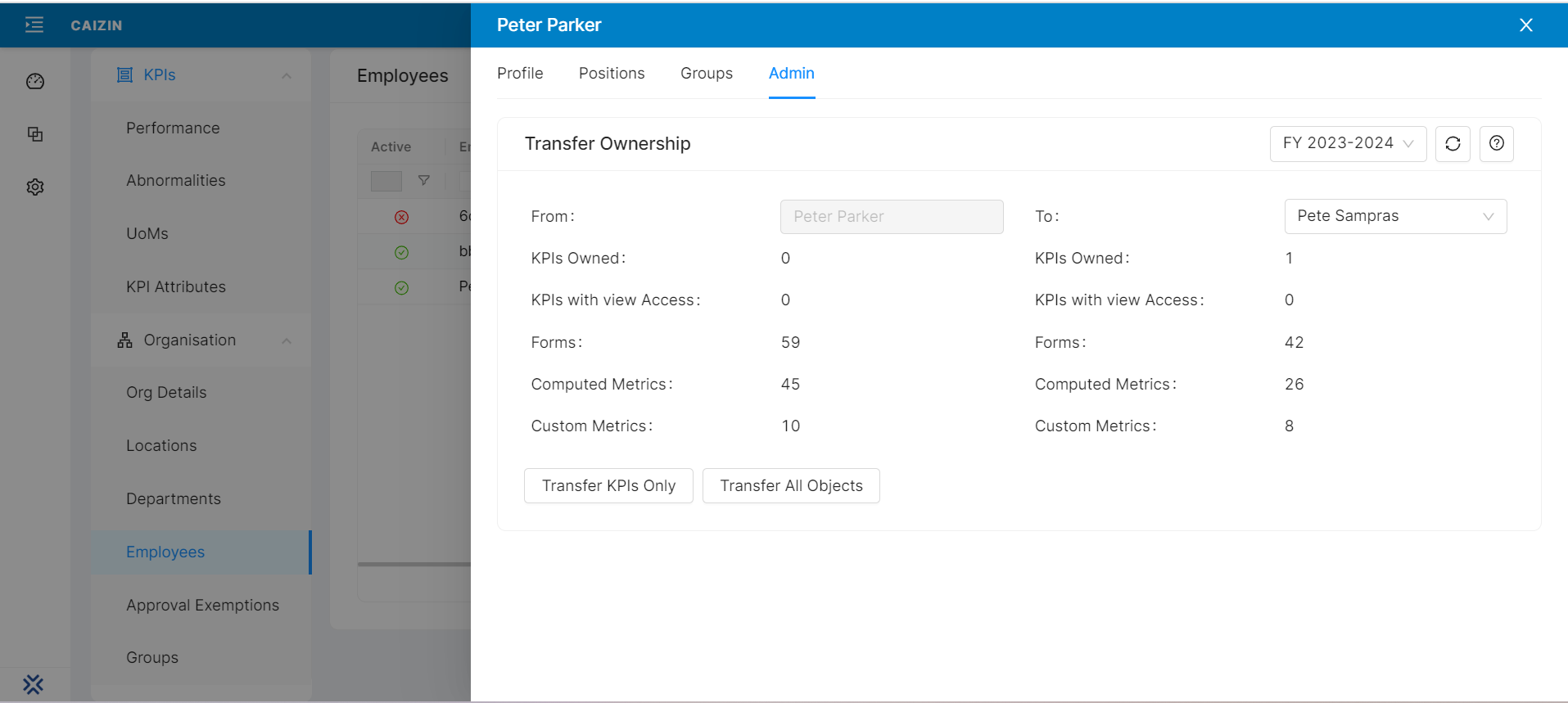
2. Transfer all objects - This will transfer all 4E objects ‘From user’ to ‘To user’
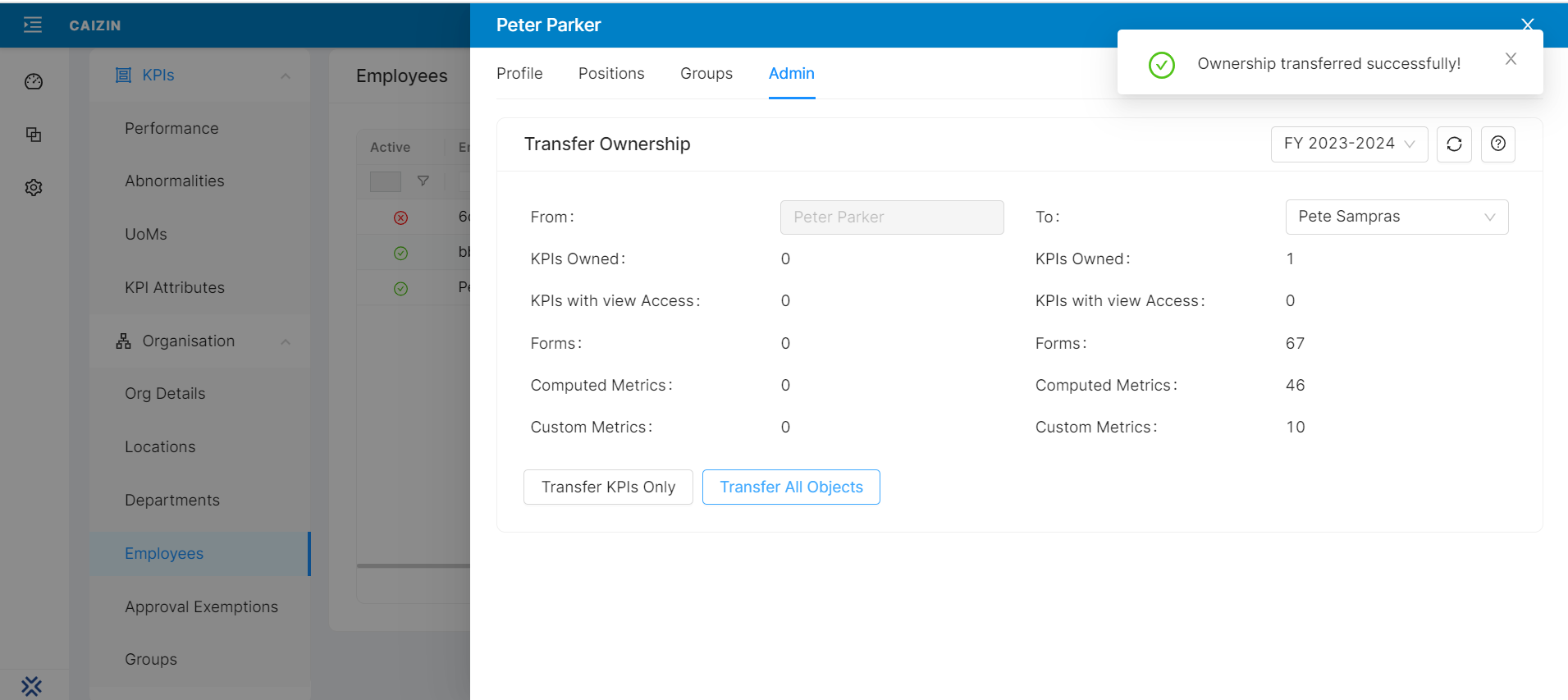
This step concludes the case of the Transfer of employees in 4E.
Step 2 - Deactivate the Employee
This step is required ONLY when an employee exits the organisation.
Click on the Profile Tab and under the Details section,
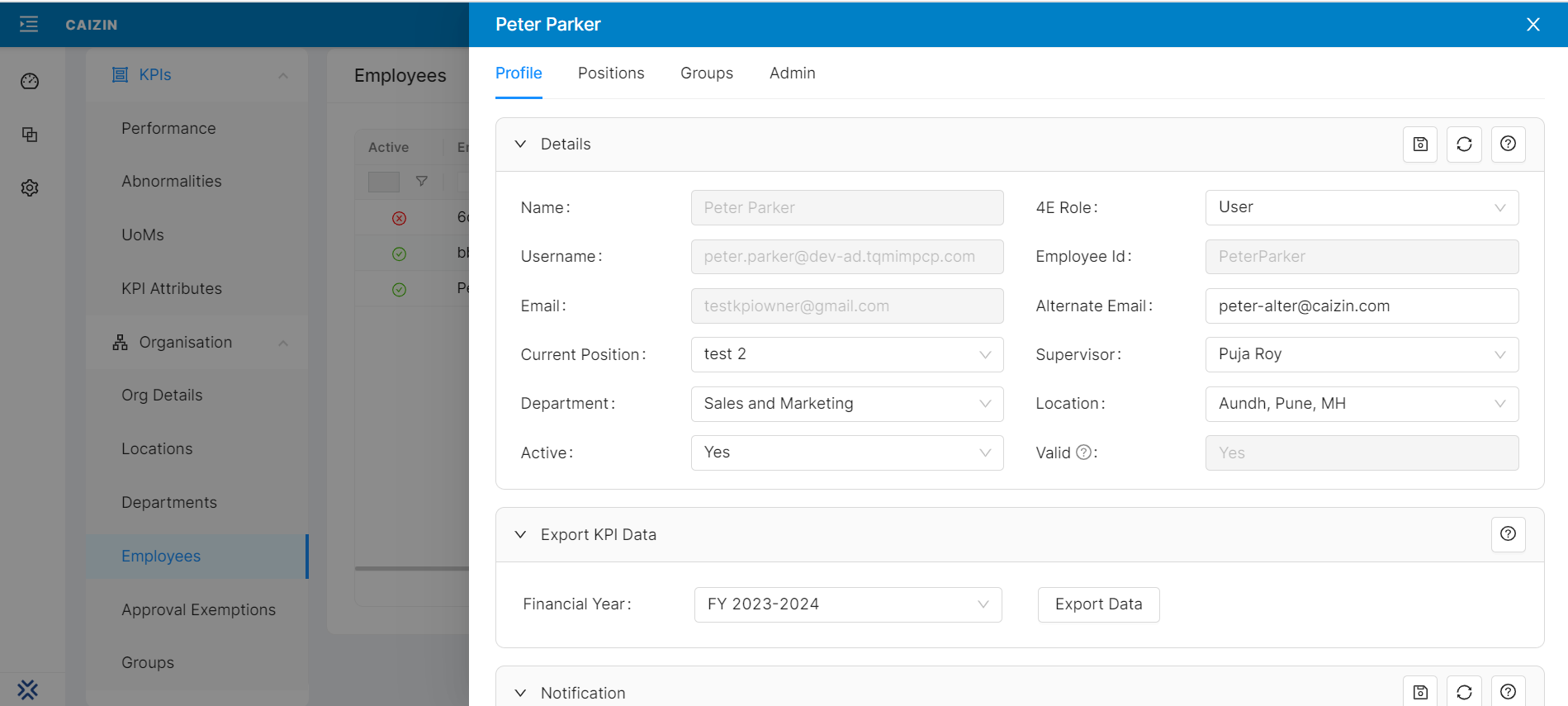
For Active - Select No and click on the save icon
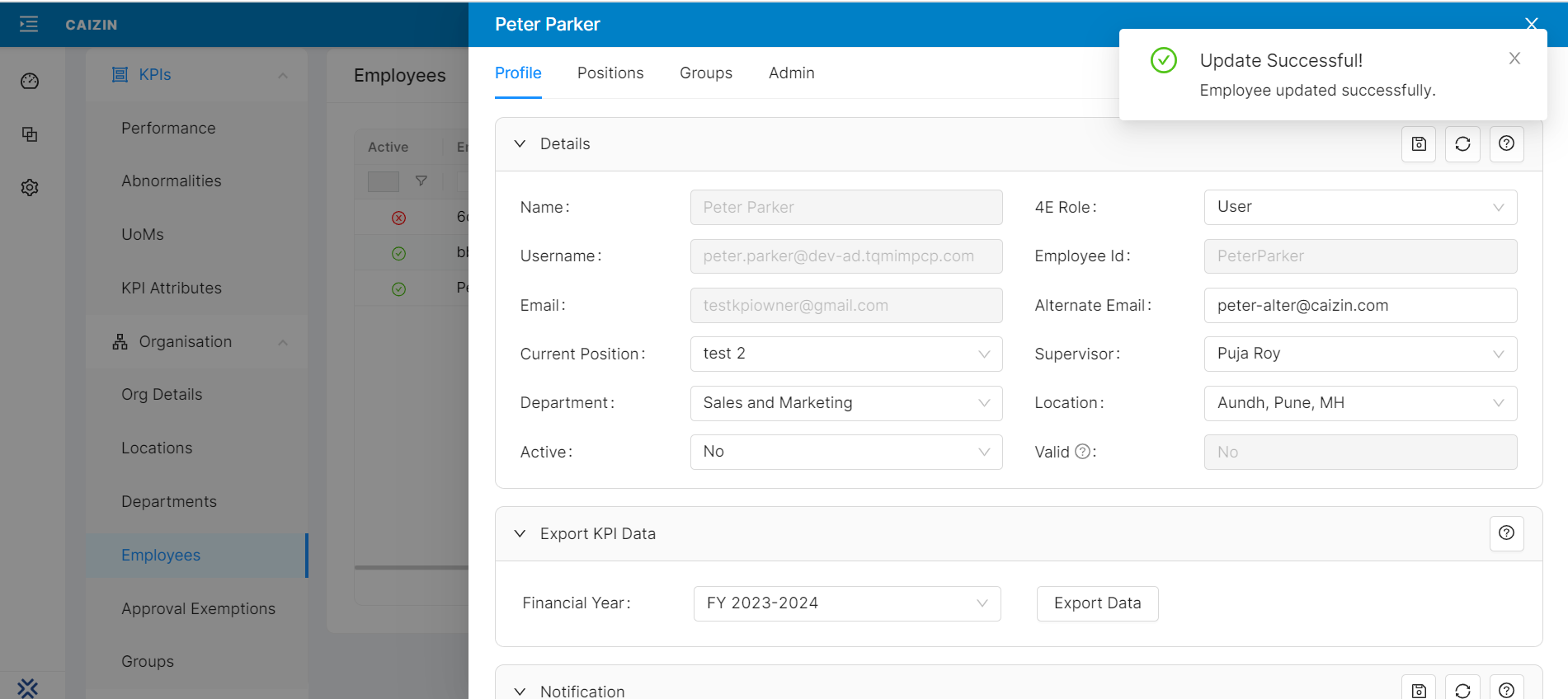
Please note Inactive users will not be searchable for permission assignment in 4E and will not be able to login to 4E.